
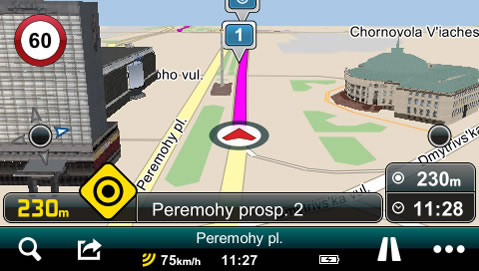
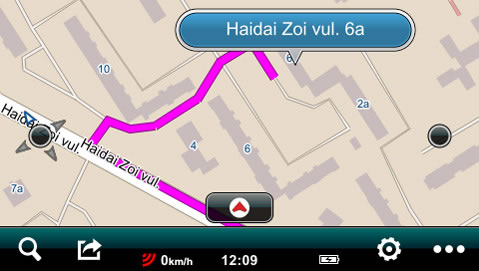
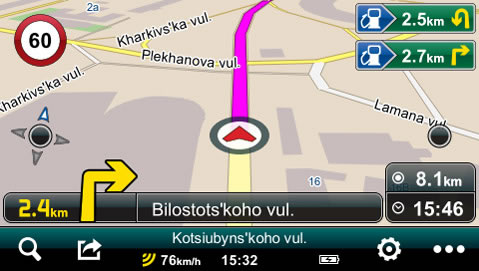
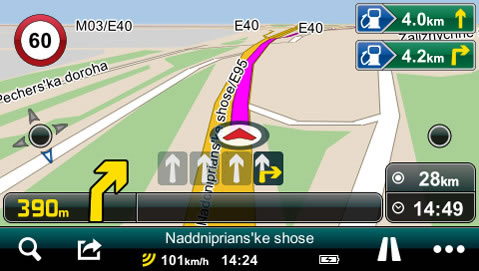
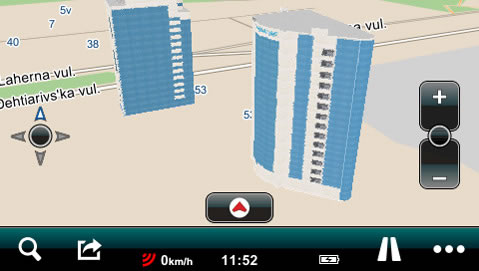
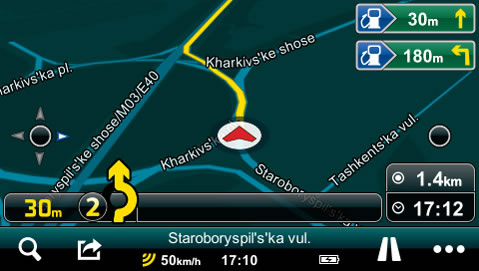
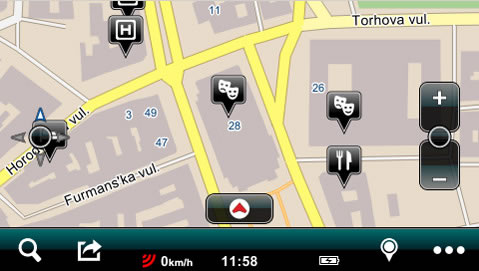
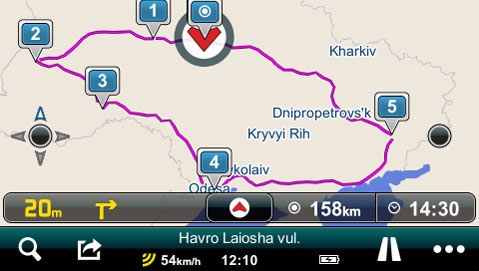
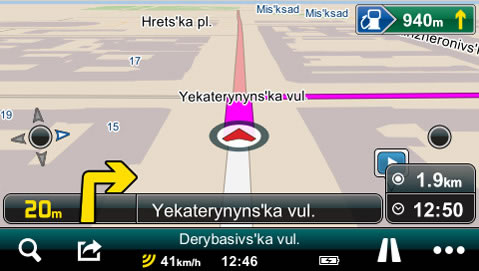
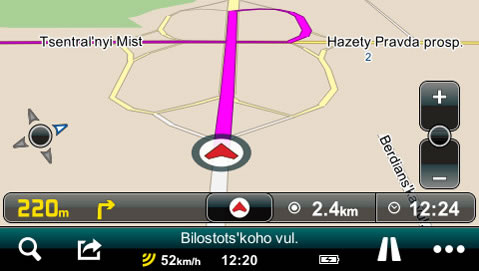
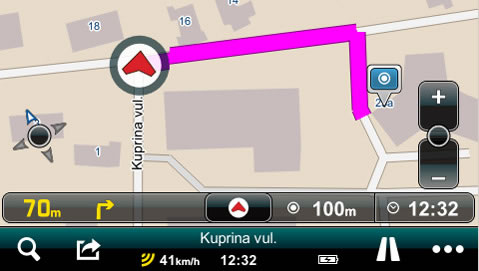
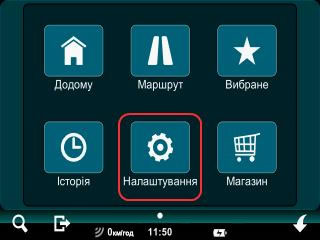
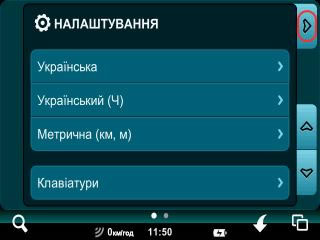
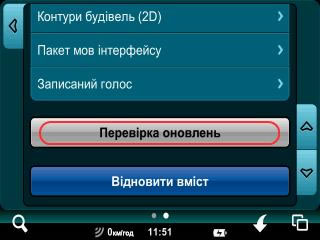
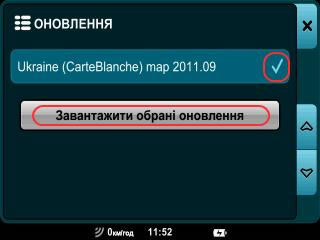
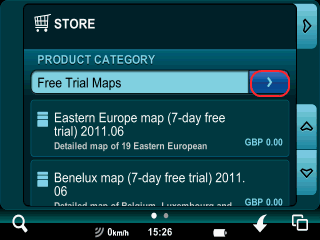
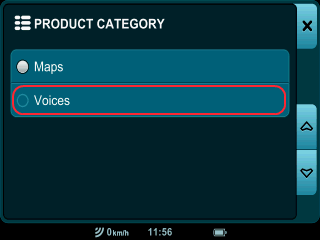
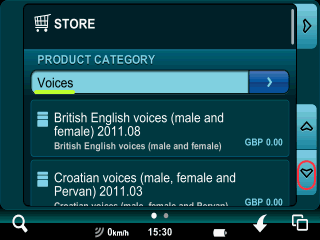
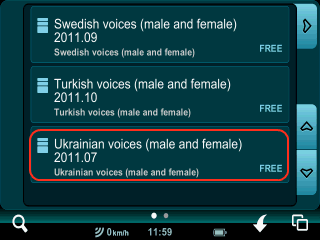
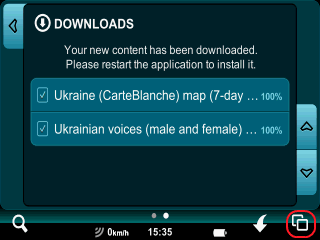
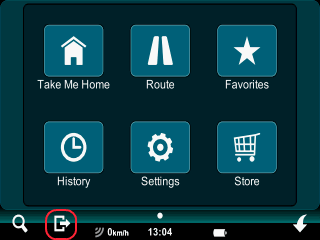
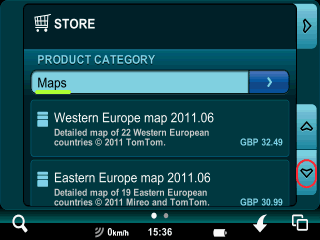
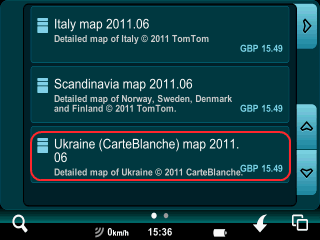

Mireo DON’T PANIC is an on-board turn-by-turn GPS navigation software by Mireo Company (Croatia), offering intuitive interface and premium performance.
The software has a unique routing engine, making it possible to calculate practically any trip in an instant. During navigation house numbers with fractions and letters and in-block passages are taken into account.
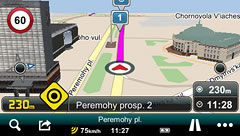
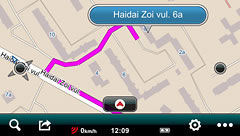
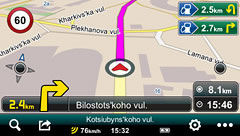
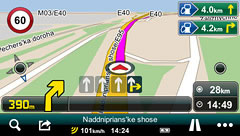
Mireo DON’T PANIC provides voice guidance along the route, displays lane information and signposts, and optionally displays speed alerts.
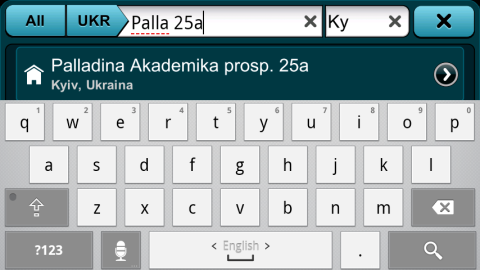
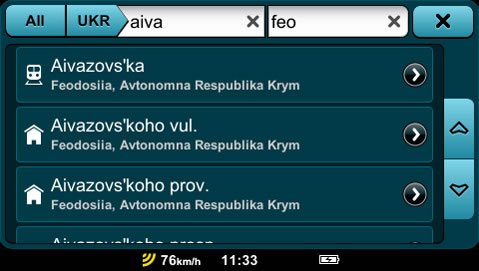
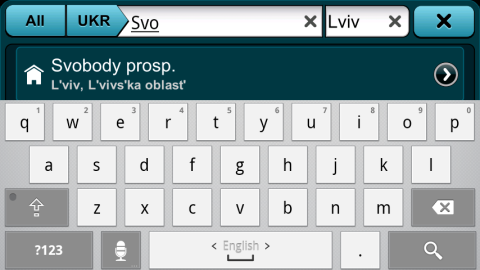
A unique feature of Mireo DON’T PANIC is its search page, as fast an easy-to-use as a web browser. You can search for addresses, coordinates, names and types of objects, phone numbers or any combination of these. The software automatically corrects spelling mistakes and offers probable search results as you type. All possible search parameters are entered in just two fields, ‘what’ and ‘where’ to search.
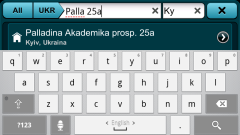
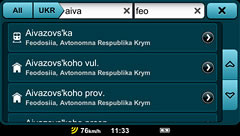
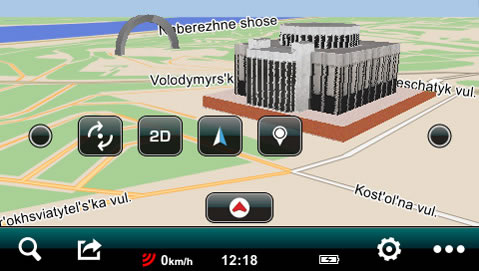
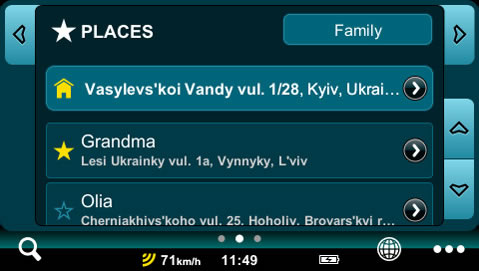
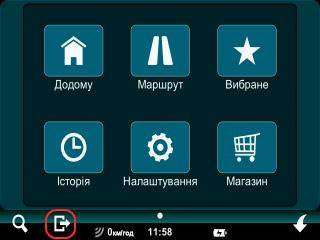
The basic principles of Mireo DON’T PANIC are convenience of use and the best possible user experience. It has a simple, easy-to use interface, with all basic functions available in one or two taps from everywhere within the application. A number of advanced functions allow the user to customize the map view, including zoom, pan and orientation; to create lists of favorite places and routes; to send your location to other users, to record the current route, and so on.
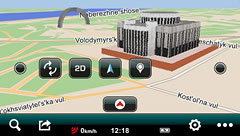
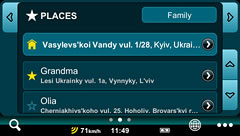
Mireo DON’T PANIC is fully localized for the Ukrainian market: interface, voice guidance and maps are available in the Ukrainian language. The map of Ukraine includes unlimited free updates!
Maps of other countries are available for in-app purchase.
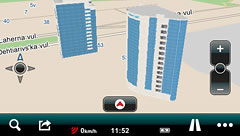
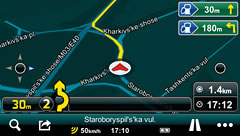
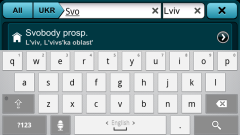
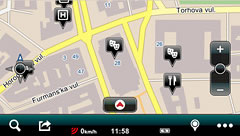
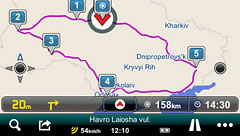
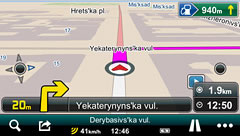
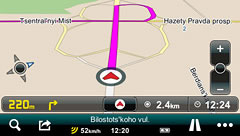
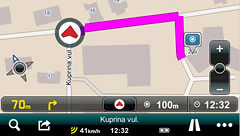
Mireo DON’T PANIC includes an efficient offline CarteBlanche Ukraine map, which is stored in the memory of the device or on an SD card. The app is convenient, reliable and reasonably priced, and it doesn’t require mobile Internet connection. The additional online CarteBlanche.Traffic service will make driving around Kyiv even more comfortable. The routes in the capital of Ukraine and the surrounding area are calculated with account of the current traffic situation, avoiding morning and evening traffic jams, accidents, strings of traffic lights and long left turns where possible. The service also allows to take into account temporary, permanent or periodic changes in traffic organization, such as blocked roads, time-dependent one-way traffic, changed lane markers and so on.
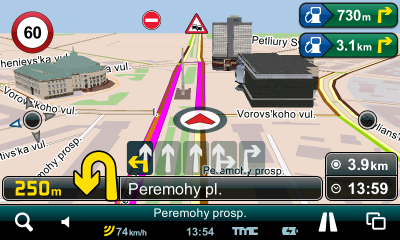
So, with CarteBlanche.Traffic the users of Mireo DON'T PANIC can enjoy the advantages of both online and offline GPS navigation, and, what is more, reduce fuel consumption and save your precious time for family, friends or hobbies!
To use CarteBlanche.Traffic, you will need the following:
ATTENTION: CarteBlanche.Traffic service (unlike Mireo DON’T PANIC app itself) requires mobile Internet connection. Please consult your mobile operator for your mobile Internet rates. We advise to choose a billing plan with sufficient number of MBs included.
DISCLAIMER: CarteBlanche.Traffic service is provided free of charge and on “as is” basis, in the test mode. The service might be interrupted or temporarily discontinued for operational reasons.
Avtonomna Respublika Krym (Crimea) |
||
|---|---|---|
|
|
|
Cherkas'ka obl. |
Chernihivs'ka obl. |
Chernivets'ka obl. |
|
|
|
Donets'ka obl. |
||
|
|
|
Dnipropetrovs'ka obl. |
Ivano-Frankivs'ka obl. |
Kharkivs'ka obl. |
|
|
|
Khersons'ka obl. |
Khmel'nyts'ka obl. |
Kirovohrads'ka obl. |
|
|
|
Kyivs'ka obl. |
||
|
|
|
| Bilotserkivs'kyi raion | ||
|
|
|
| Borodians'kyi raion | ||
|
|
|
| Boryspil's'kyi raion | ||
|
|
|
| Brovars'kyi raion | ||
|
|
|
| Kaharlyts'kyi raion | ||
|
|
|
| Kyievo-Sviatoshyns'kyi raion | ||
|
|
|
| Makarivs'kyi raion | ||
|
|
|
| Obukhivs'kyi raion | ||
|
|
|
| Pereiaslav-Khmel'nyts'kyi raion | ||
|
|
|
| Vasyl'kivs'kyi raion | ||
|
|
|
| Vyshhorods'kyi raion | ||
|
|
|
L'vivs'ka obl. |
Luhans'ka obl. |
Mykolaivs'ka obl. |
|
|
|
Odes'ka obl. |
Poltavs'ka obl. |
Rivnens'ka obl. |
|
|
|
Sums'ka obl. |
Ternopil's'ka obl. |
Vinnyts'ka obl. |
|
|
|
Volyns'ka obl. |
Zhytomyrs'ka obl. |
Zakarpats'ka obl. |
|
|
|
Zaporiz'ka obl. |
||
|
|
|
To try Mireo DON’T PANIC app, download the following installer and run it on your device:
Dontpanic-216168-android.apk (15 263 019 bytes)
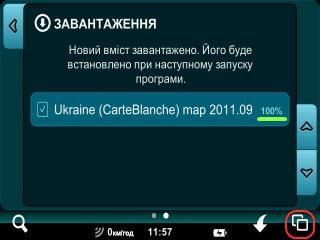
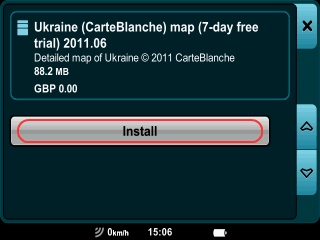
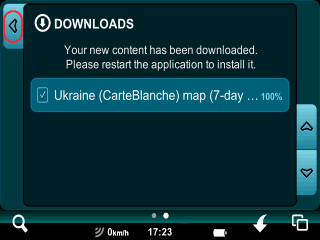
Once installed the app will download the map of Ukraine with a 7-day trial license. As the map size is about 200 MB, we suggest using WiFi connection to speed up downloading and avoid extra charges for mobile Internet.
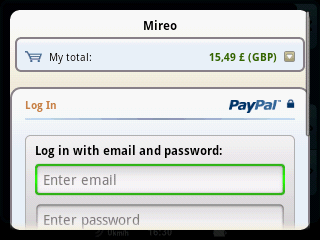
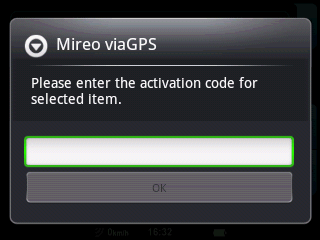
Once the 7-day trial period is over, you should enter an activation code to keep using Mireo DON’T PANIC with the map of Ukraine.
Bank Transfer
You can order the code by phone +380 (44) 390-81-31 or by email. We will send you a proforma invoice, which can be paid in any bank or from your company account. After receiving the payment we will send you the code in any form convenient for you.
All trademarks mentioned on this site are the property of their respective owners.
© 2005–2016 Carte Blanche Ukraine